Setup
Six steps, and you can read all of them before you pay
Nothing here is hidden until after checkout. This is the whole sequence.
Provkeep sits under a store you already run. It does not replace your checkout, your theme or your payment provider, and it does not need access to any of them. What it needs is somewhere to record which lot shipped, and a way to be told when an order happens.
On WooCommerce, today
WooCommerce gets a plugin you upload once. Every step below is that path. If you are not on WooCommerce, you are not shut out: the same records go in over a plain HTTP API, which is how a custom storefront on any stack connects, and more platforms follow from there. The dividing line is not the platform — it is whether your store has somewhere to record which lot shipped.
The six steps
1 · Download the plugin
It is in your dashboard the moment you have an account, under Settings. The file is built from the version your dashboard is running, so it is always the current one — there is no separate version to match up.
2 · Install it in WordPress
In your WordPress admin, Plugins → Add Plugin → Upload Plugin, choose the file, activate it. This is WordPress’s ordinary upload flow; nothing about it is specific to us.
3 · Open the Connection screen
WooCommerce → Provkeep → Connection, in the same WordPress admin.
4 · Paste three values
Your dashboard shows all three on the screen you land on after signing up. They look like this:
- API base URL — the address your store sends records to.
- Storefront ID — which of your stores this is. Not a secret.
- Secret API key — created with one click in the dashboard, and shown once. Only a fingerprint of it is stored, so nobody can read it back to you afterwards, including us. If you lose it, issue a replacement and revoke the old one; your store keeps working until you do.
The plugin ships with a placeholder base URL. Replace it with the one your dashboard gives you rather than leaving what is in the field.
5 · Press Test connection
It is on that same Connection screen, and it is how you know you are done. It reports whether the three values are accepted, so you find out immediately instead of waiting to see whether an order shows up.
6 · Decide when the gate starts blocking
Under WooCommerce → Provkeep → Consent gate, Enforcement mode starts on Log only: consent is kept when a customer gives it, but an order without it still goes through. That is deliberate — it lets you watch your own checkout behave normally before anything can block a sale. Switch it to blocking once you have confirmed it works.
Log only is meant to be the first couple of days, not a setting you leave on. Your dashboard says which mode your store last reported, and tells you when it has been watching for longer than it should.
What you see once it is connected
From then on, every new order arrives on its own — you do not export anything or push anything. Orders placed before you connected stay where they are; the record starts at your first new order. The screen gathers what your store can and cannot document — and it names the gaps rather than averaging them away.
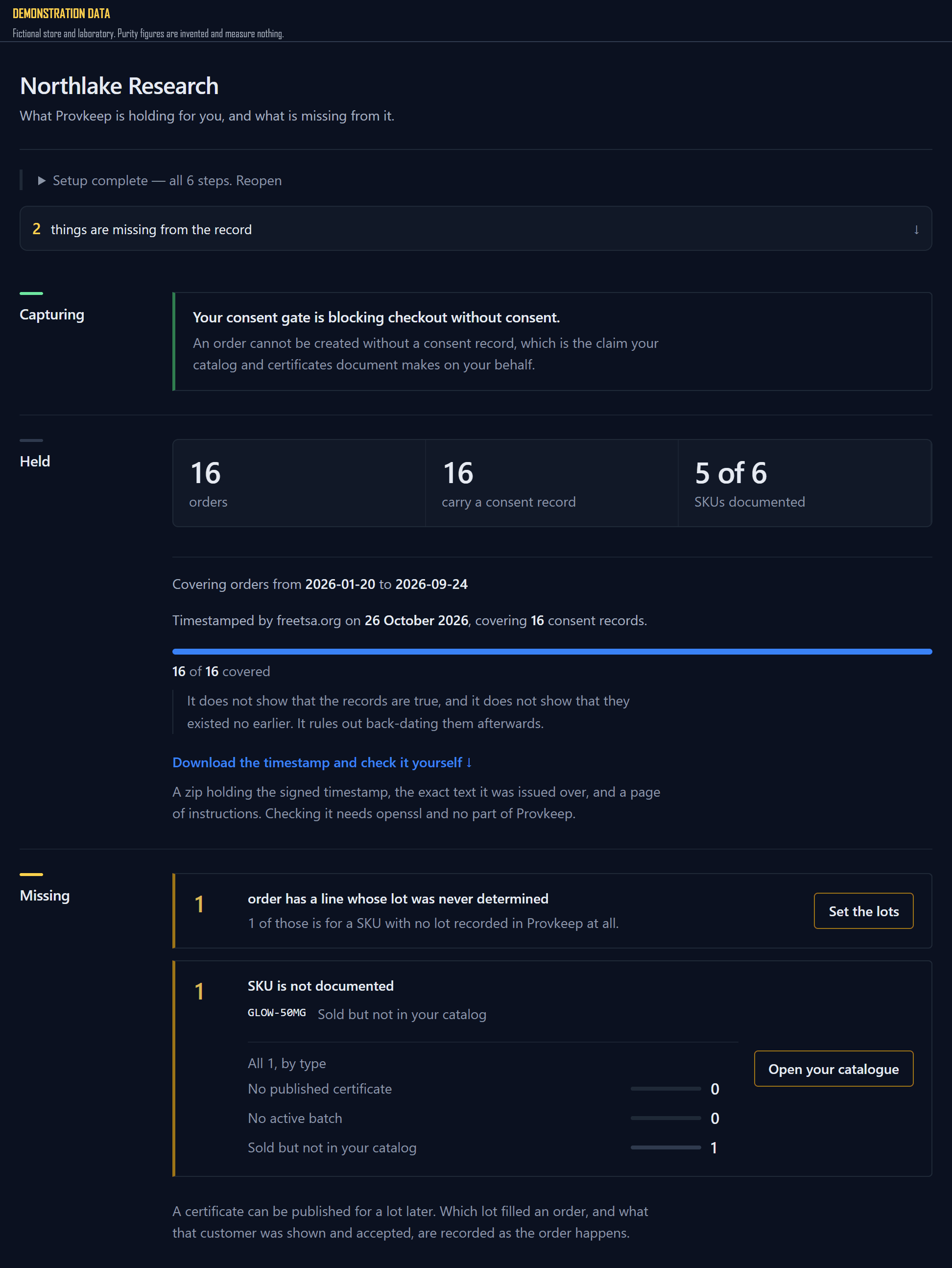
What you need before you start
A WooCommerce store whose checkout you can still edit, and an admin login to its WordPress. That is the whole list. You do not need to change payment provider, move hosting, or give anyone access to your store — the credential only works in one direction, from your store to us.
If something does not connect
Test connection names the reason, and a rejected key is the usual one — most often a key copied with a character missing, or one issued for a different store. Write to support with what the test reported and that line is usually enough to identify it. Never send the key itself.
How it works covers what the product does with the records once they arrive.